WooCommerce Subscriptions: A Complete Guide to Selling Memberships and Recurring Products


Subscriptions can turn an unpredictable WooCommerce store into a business with steadier revenue and longer customer relationships. The difficulty is that recurring payments create more moving parts than a one-time sale. You must manage billing schedules, renewals, failed payments, customer access, cancellations and ongoing value after checkout.
When those parts live in separate plugins, store owners often face duplicated settings, inconsistent customer records and more maintenance. A subscription customer may pay through one system, receive membership access through another and contact support because the two no longer agree.
The solution is a clear subscription model and a WooCommerce subscription tool that connects products, payments, memberships and customer self-service. This guide explains the complete process and shows how to build it with ArraySubs inside WordPress.
What are WooCommerce subscriptions?
WooCommerce subscriptions are products or services that customers buy on a repeating schedule. Instead of completing a single transaction, the store creates a continuing commercial relationship. The customer may be billed weekly, monthly, annually, or according to a fixed schedule, depending on the offer.
A practical subscription system usually handles five connected jobs:
- Recurring billing: It determines when each renewal is due and how payment is collected.
- Subscription status: It records whether a subscription is active, pending, paused, on hold, cancelled, or expired.
- Customer access: It grants or removes membership benefits according to the current subscription.
- Self-service: It lets customers view their plan and, when allowed, pause, cancel, renew, or switch it.
- Administration: It gives store teams one place to review subscriptions, correct records and support customers.
Recurring products can include physical subscription boxes, software access, online communities, coaching programs, learning libraries, maintenance plans, digital downloads and member-only discounts.
Why sell memberships and recurring products?
The main benefit is not simply collecting the same payment again. A good subscription model gives both the store and the customer a reason to continue the relationship.
More predictable revenue
One-time sales restart the acquisition process after every purchase. Active subscriptions create a base of expected renewals. Revenue still changes because customers join, pause, upgrade, downgrade, or cancel, but planning becomes easier when part of the business begins each month with active accounts.
Higher customer lifetime value
A useful recurring product can earn several payments from the same customer. This can increase customer lifetime value and make acquisition spending easier to evaluate. The outcome depends on retention, however, so the product must keep delivering value after the first checkout.
Stronger customer relationships
Memberships create repeated opportunities to help customers through new content, benefits, products, support, or community access. These touchpoints can strengthen trust and reduce the need to win the same customer again from the beginning.
Easier access management
A connected membership system can automatically provide benefits to active subscribers and remove or change access when a subscription expires. This reduces manual account updates and prevents access rules from drifting away from billing status.
Popular WooCommerce subscription models
Choose the commercial model before configuring the plugin. The model decides how customers understand the offer, how frequently they pay and what must happen at renewal.
Membership subscriptions
Customers pay for access to protected content, courses, communities, downloads, support, or special store benefits. The membership may have one tier or several plans with different access levels.
Physical product subscriptions
Customers receive products on a schedule. Common examples include food boxes, cosmetics, coffee, supplements and replacement items. Shipping rules, stock and renewal timing are central to this model.
Digital product or software subscriptions
Customers pay for continued access to software, files, templates, reports, or online tools. The store must connect subscription status to permissions so expired accounts no longer receive paid access.
Service retainers
Agencies, consultants, maintenance providers and coaches can sell a repeating package of work. The plan should clearly define what is included during each billing period and what happens to unused capacity.
Curated subscription boxes
A box can contain fixed products or allow customers to build their own collection. This model adds fulfilment and inventory complexity, so test the full renewal and shipping flow before launch.
Which WooCommerce subscription plugin should you choose?
There are several ways to add subscriptions to WooCommerce. The official WooCommerce Subscriptions extension is widely known. Other tools focus on recurring billing, membership access, content protection, subscription boxes, or customer portals. A store can also combine several specialized plugins.
That choice should be based on the whole workflow rather than the checkout screen alone. Before choosing, check whether the solution can:
- create the billing schedules you need;
- work with your preferred payment gateway;
- manage trials, signup fees, renewals, pauses and cancellations;
- connect active subscriptions to membership access;
- protect complete pages or selected content;
- give customers a clear self-service area;
- record subscription activity for support and reporting; and
- grow without requiring a large stack of overlapping plugins.
For stores that want subscriptions, memberships, protected content, administration and customer self-service in one WooCommerce workflow, ArraySubs is a strong all-in-one choice.
Its free and Pro features share the same subscription record, which helps store teams manage billing and access from one system. The right edition depends on the payment gateways and advanced automation the store needs.
How to set up WooCommerce subscriptions with ArraySubs
The following steps use a test WordPress installation. Complete the first setup with a test customer and a non-live payment method, then verify the entire purchase and renewal journey before accepting real orders.
Step 1: Install WooCommerce and ArraySubs
Install and activate WooCommerce first. Complete the basic WooCommerce setup for currency, checkout, taxes, shipping and at least one payment method.
Next, go to Plugins → Add New Plugin and search for ArraySubs.
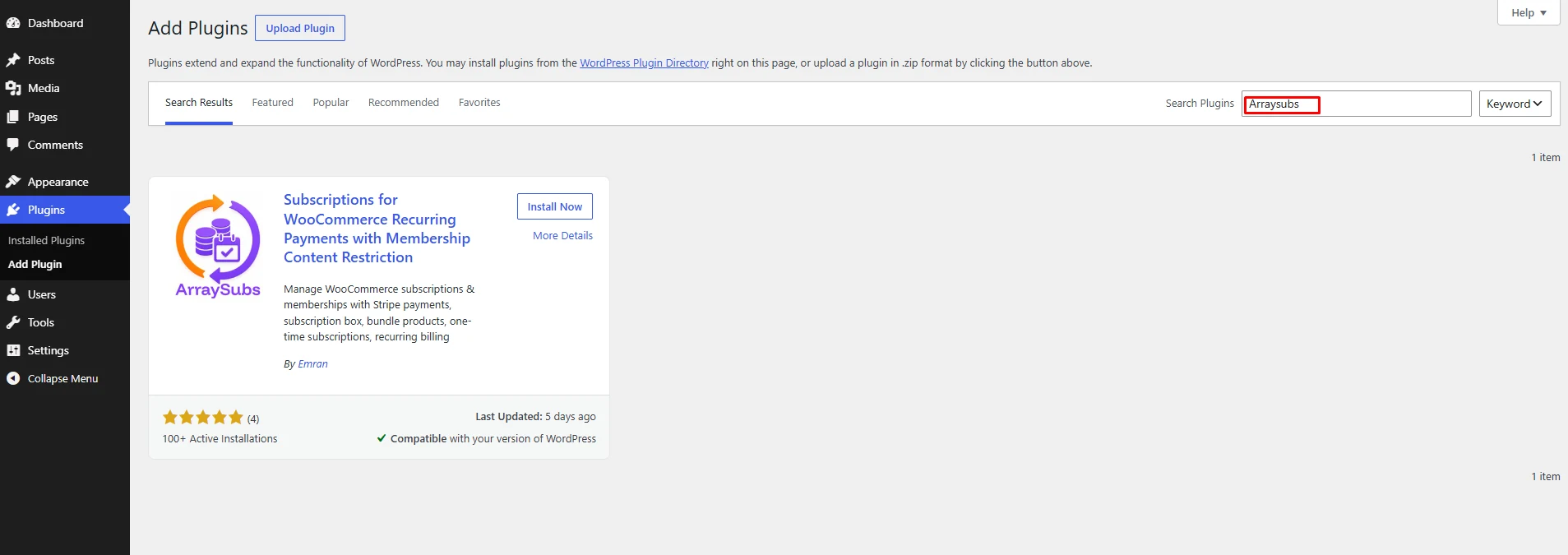
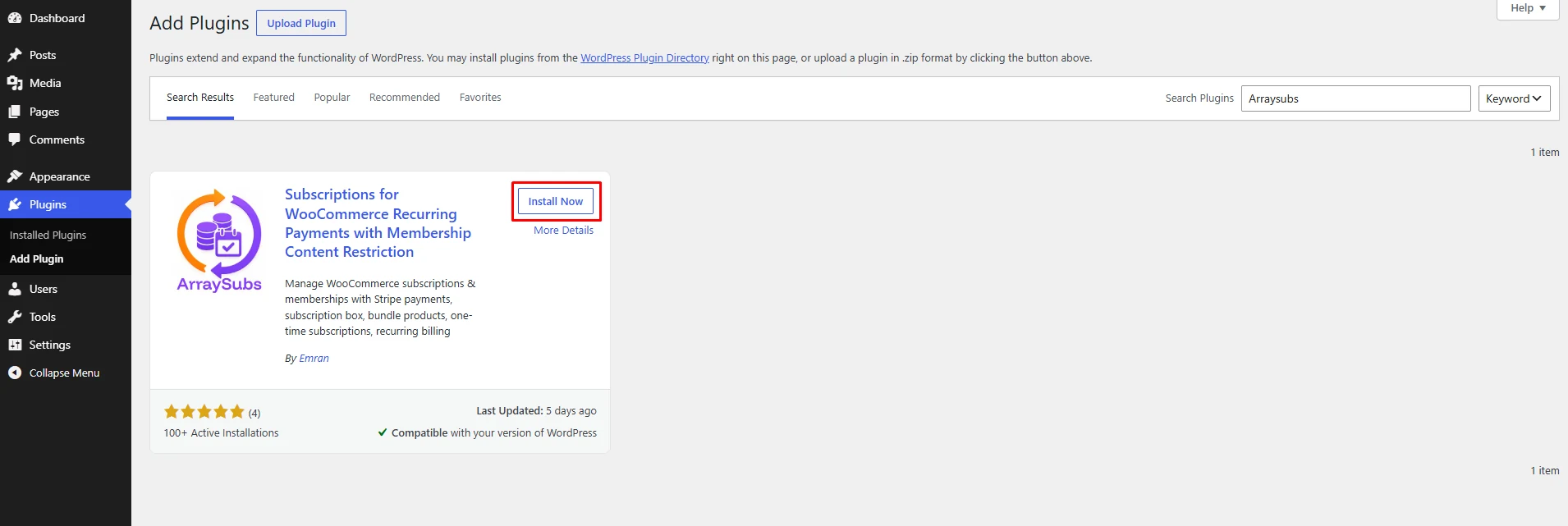
Find ArraySubs in the search results and click Install Now.
After the installation is complete, click Activate to enable ArraySubs.
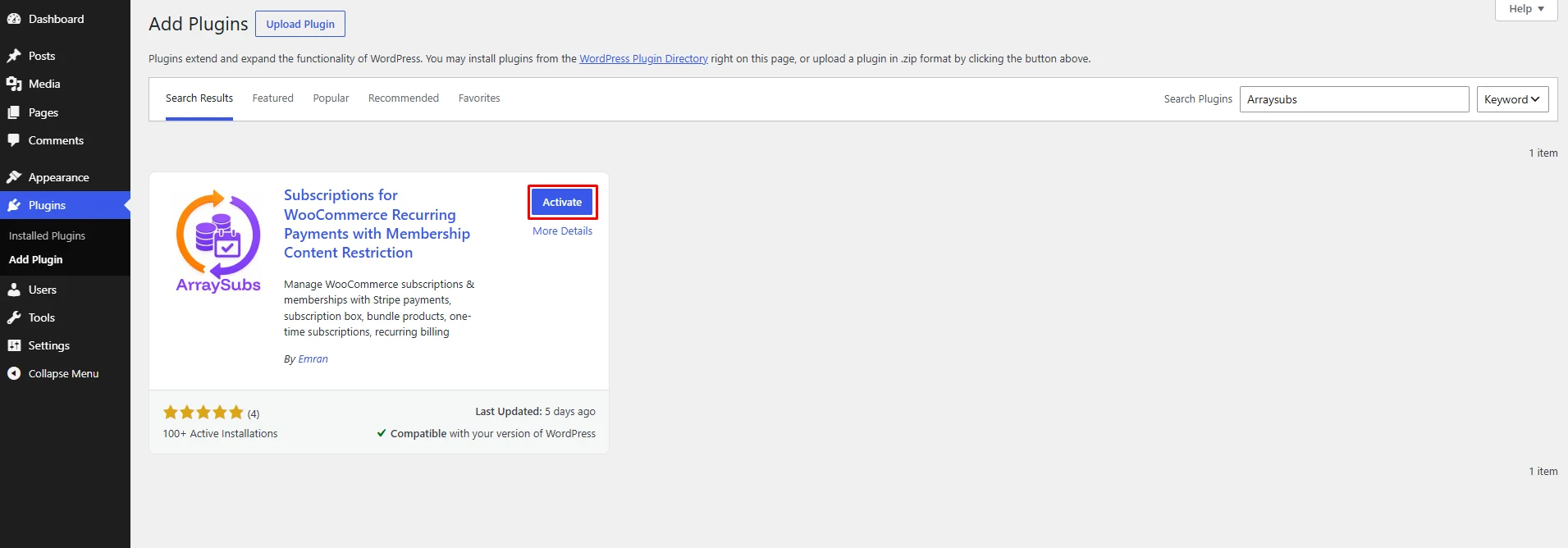
After activation, a new ArraySubs menu appears in the WordPress dashboard. This menu contains subscription management, member access, content protection, reports, settings and setup tools.
Step 2: Run the 1-Minute Setup wizard
Open ArraySubs → 1-Minute Setup. The setup screen organizes the first configuration into three practical tasks:
- Subscription settings define how subscriptions behave in the store.
- Subscription product opens the WooCommerce product workflow.
- Set up payments connects a payment method for renewal orders.
Review the three setup choices before continuing: configure subscription behavior, create the recurring product and connect the renewal payment method.
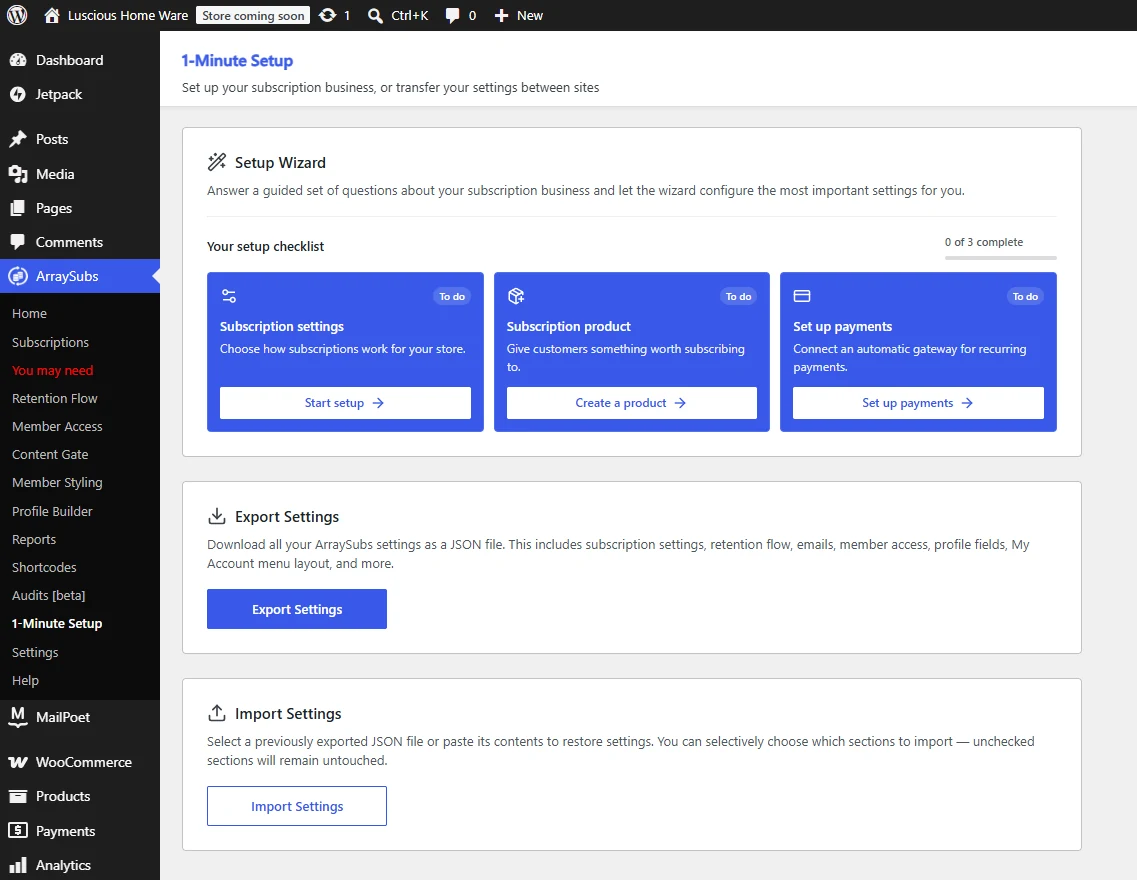
Confirm the three setup tasks, test one complete subscription purchase and verify that renewal settings work before launching the plan.
Start with a simple monthly or annual plan. Avoid adding several billing variations until one complete path works from checkout through renewal. The setup page also provides export and import tools, which are useful when moving a tested configuration to another site.
Step 3: Configure the general subscription rules
Go to ArraySubs → Settings → General. Decide whether customers may place multiple subscriptions in one cart, whether one customer can hold more than one subscription and whether recurring items can be purchased with regular products.
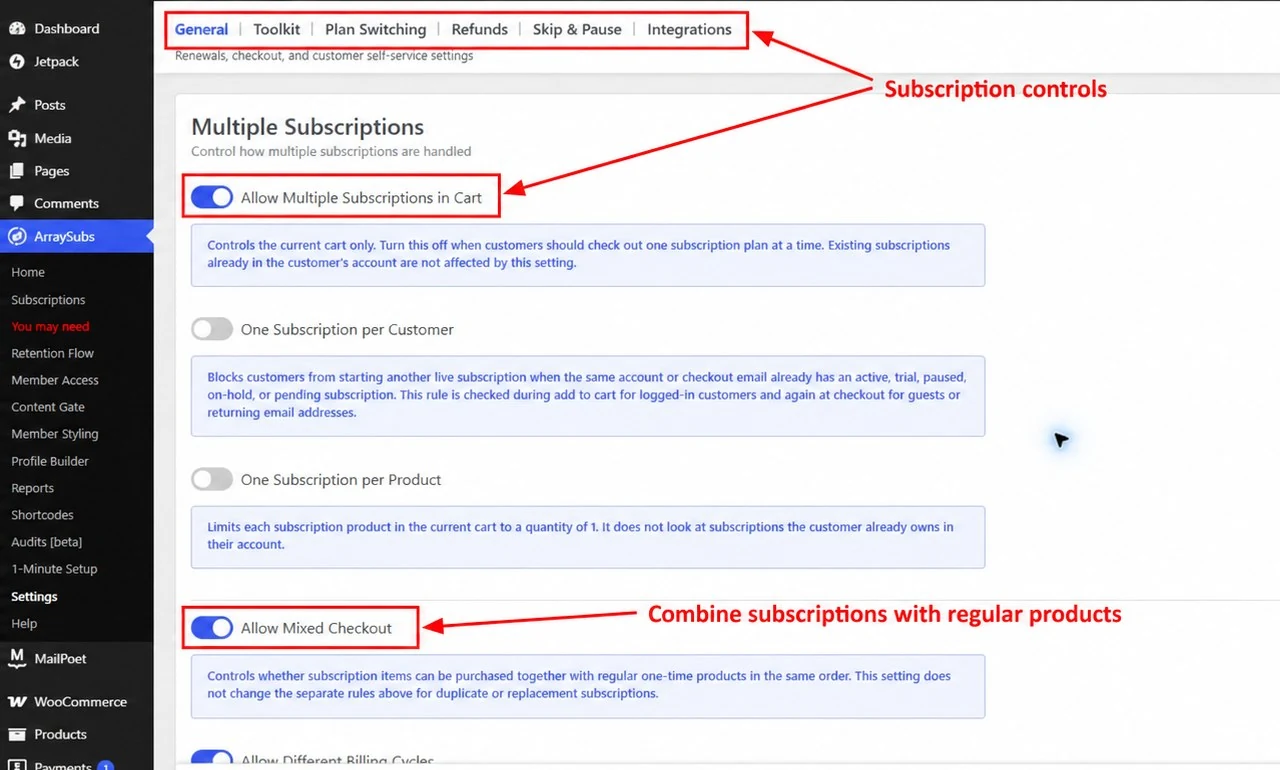
These rules should match the offer. A curated box business may want one active box per customer, while a digital store may allow several independent memberships. Mixed checkout is helpful when customers frequently buy a subscription and a one-time product together, but it requires payment and fulfilment testing.
The other settings tabs cover tools such as plan switching, refunds, pause behavior and integrations. Enable only the features your customer journey needs.
Step 4: Create the first subscription product
Open Products → Add new product. Enter the product name, long description, short description, image, category and any relevant inventory or shipping details.
In the Product data section, keep Simple product for a straightforward plan and select Subscription [AS]. This activates the Subscription Billings [AS] tab.
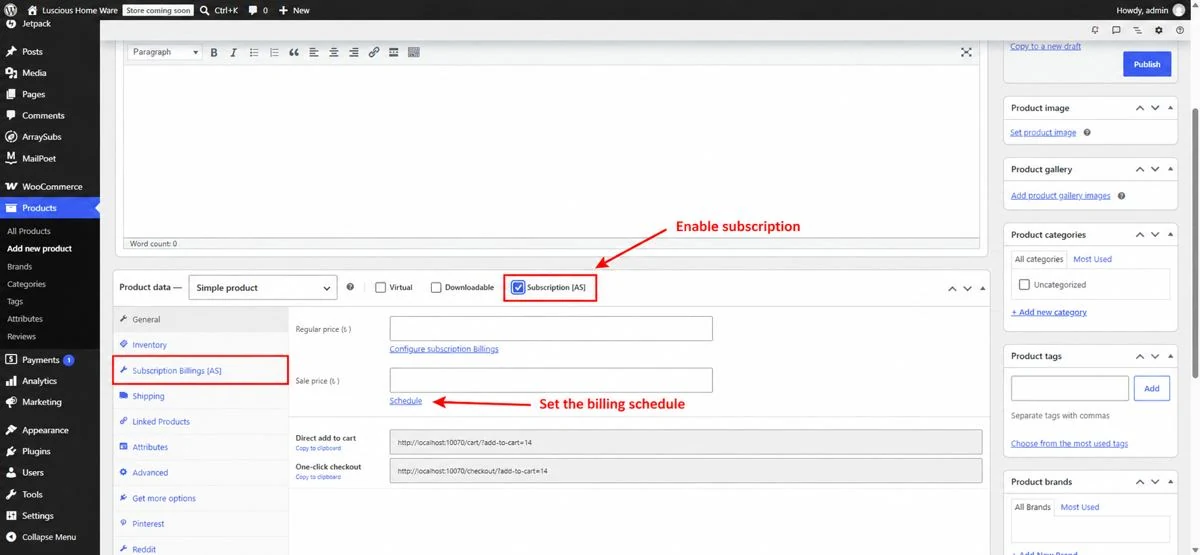
Open Subscription Billings [AS] and configure the plan carefully. Depending on the product and edition, the available fields may include:
- recurring price;
- billing interval and period;
- subscription length;
- free trial;
- signup fee;
- different renewal price; and
- fixed-date or customer-selected duration rules.
Write the plan terms in plain language on the product page. Customers should understand what they pay today, when the next payment occurs, what they receive and how they can change or cancel the plan.
Step 5: Configure payments and renewals
A subscription schedule does not automatically guarantee successful collection. The gateway must support the plan’s renewal method.
ArraySubs can work with WooCommerce gateways for manual renewal invoices. Automatic off-session renewals depend on a supported gateway and may require ArraySubs Pro. Confirm whether the chosen Stripe, PayPal, Paddle, Mollie, or other gateway supports automatic recurring payments in the exact configuration you plan to use.
Before launch, test:
- the first checkout payment;
- creation of the subscription record;
- the next payment date;
- renewal order creation;
- successful and failed payment handling;
- customer emails; and
- access after payment succeeds or fails.
Step 6: Manage subscriptions from one dashboard
Open ArraySubs → Subscriptions to view subscription records. Status filters help staff find active, pending, paused, on-hold, cancelled, expired, or trial subscriptions. The search field can locate a record by subscription ID, customer, or product.
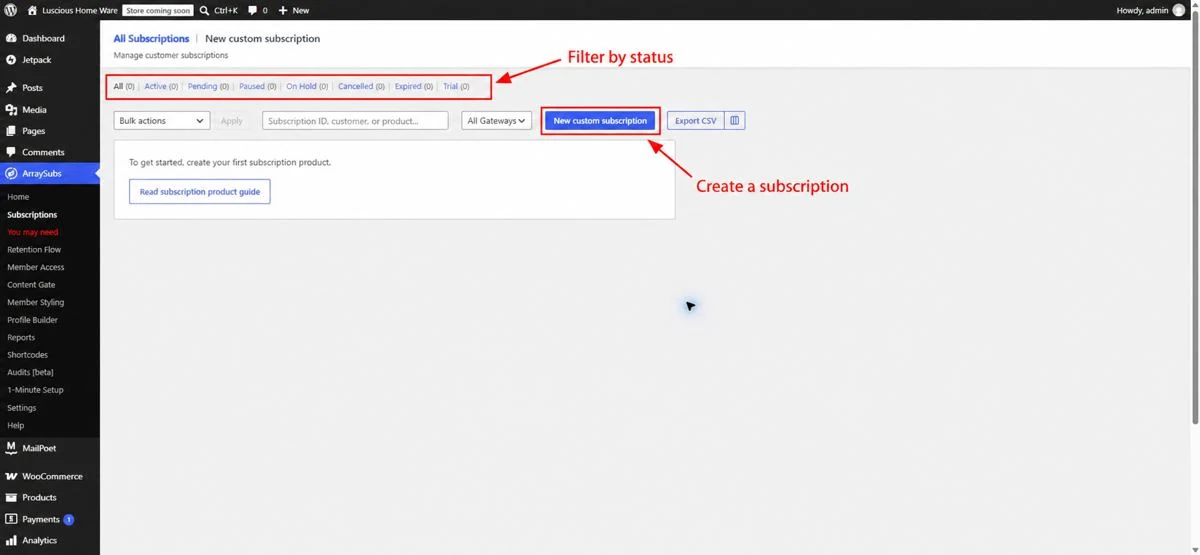
The New custom subscription action is useful for migrations, phone orders, support corrections, or staff-managed plans. Create manual records carefully and confirm the customer, product, billing schedule, gateway and next payment date before activating them.
Clear status definitions make support easier:
- Active: the subscription is running normally.
- Pending: setup or payment is not complete.
- Paused or on hold: billing or access is temporarily interrupted according to store rules.
- Cancelled: future renewals have stopped.
- Expired: the planned term has ended.
Step 7: Connect subscriptions to member access
Selling a membership requires more than recurring billing. The store must decide which subscribers receive which roles, discounts, products, downloads, or permissions.
Open ArraySubs → Member Access. The available rule groups include Role Mapping, Discount, Shop Access, URL, Post Types, Downloads, Comments, Purchase Limit and conflict.
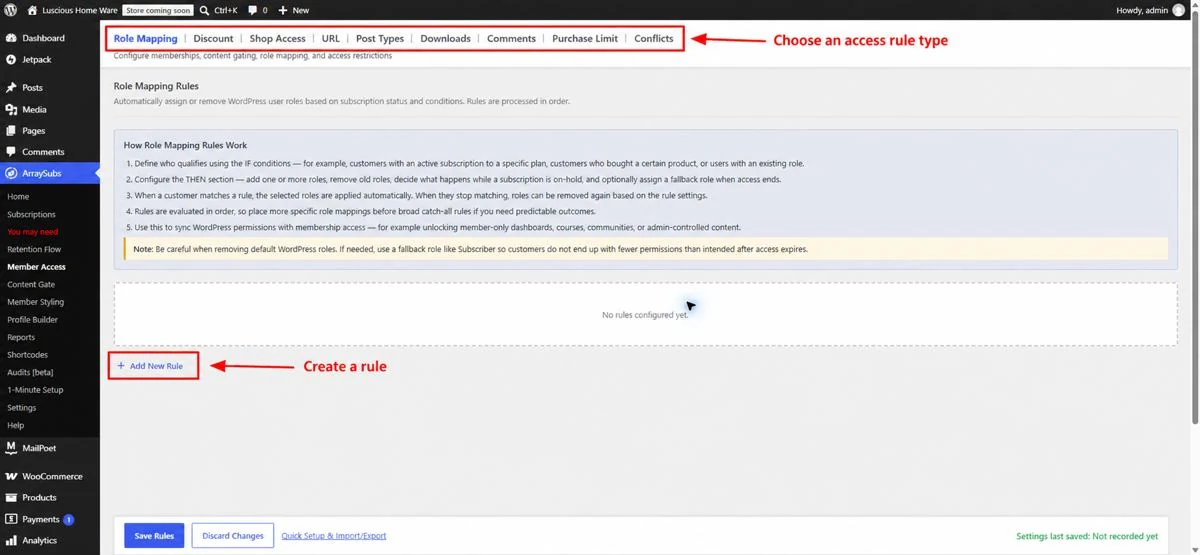
Start with one rule for the main membership. Define the condition, such as an active subscription to a specific product and then define the result, such as assigning a role or unlocking a download. Test the rule with an active member, an expired member and a logged-out visitor.
Keep rules specific and easy to explain. A complex collection of overlapping conditions is harder to support and more likely to produce unexpected access.
Step 8: Protect membership content
Go to ArraySubs → Content Gate. ArraySubs can protect an entire page or selected sections, depending on the editor and rule type. The screen provides options for a default restriction message, full-page gating, Elementor, Gutenberg, shortcodes and programmatic controls.
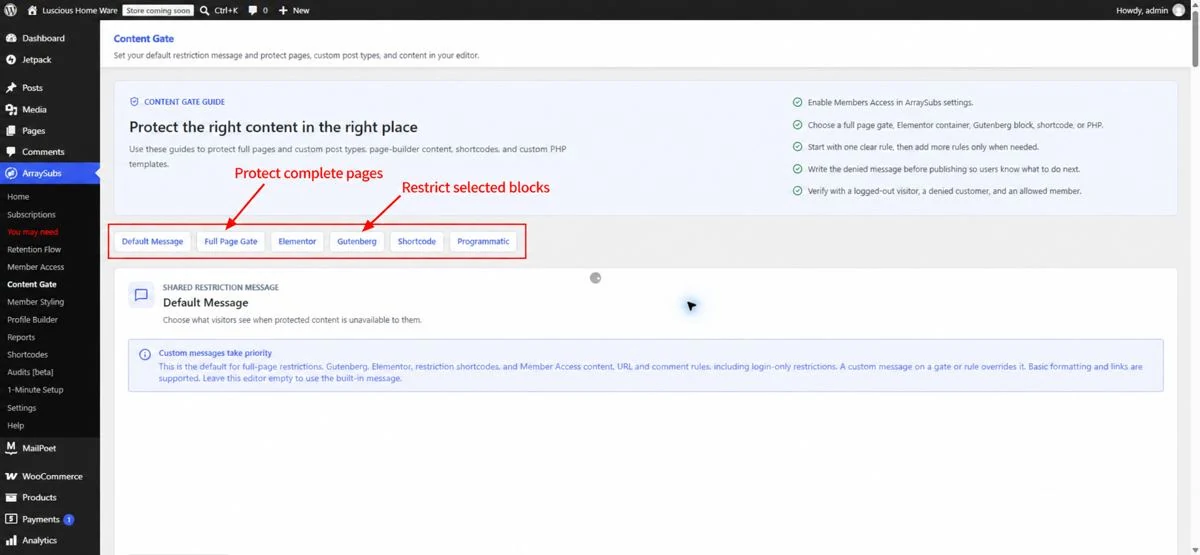
Use full-page protection for lessons, archives, or resources that should never be public. Use partial protection so that a public sales page remains visible while selected downloads, videos, or lesson sections require membership.
Always write a useful denied-access message. Tell the visitor whether they need to log in, renew, or buy a membership. Then test the page as:
- a logged-out visitor;
- a customer without the required plan;
- an active member; and
- a member whose subscription is paused or expired.
Step 9: Build the customer self-service experience
Customers should not need to contact support for every routine action. Review the ArraySubs customer portal inside WooCommerce My Account and decide which actions customers may perform.
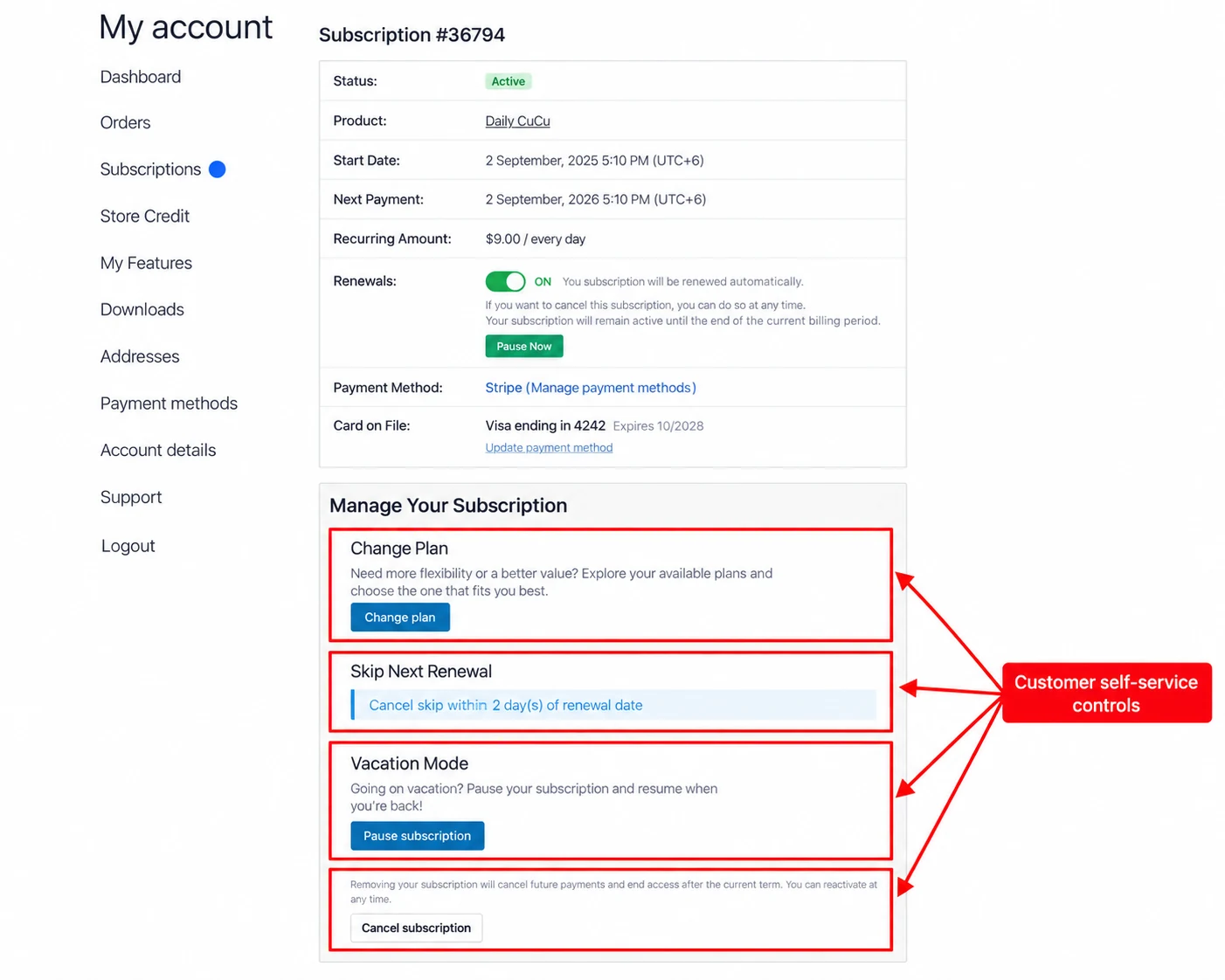
Depending on the store configuration, customers may be able to view subscription details, see the next payment date, update a payment method, pay an outstanding renewal, pause service, skip a renewal, switch plans, or cancel.
Use the same terms in the product page, emails, portal and cancellation flow. Consistent language reduces confusion and makes support replies easier.
Step 10: Test the complete subscription lifecycle
Create a test order and follow the subscription beyond checkout. A successful first payment is only the beginning of the test.
Use this launch checklist:
- The product page states the recurring price and billing period.
- Checkout creates both the order and subscription record.
- The next payment date is correct.
- Confirmation and renewal emails contain accurate links.
- Active members receive the correct access.
- Paused, cancelled and expired members receive the intended access.
- The gateway creates or processes a renewal correctly.
- A failed payment follows the configured recovery path.
- The customer portal displays the correct actions.
- Store staff can find the subscription and understand its timeline.
Best practices for a successful subscription business
Make the recurring terms obvious
Place the amount, billing frequency, trial terms, signup fee, renewal date logic and cancellation policy close to the purchase button. Clear terms improve trust and reduce support disputes.
Start with one clear offer
Launching many plans creates more combinations to test. Begin with one plan that solves a specific problem. Add monthly, annual, tiered, or bundled options after learning how customers use the first offer.
Give customers control
Self-service reduces support work and gives subscribers confidence. If a customer cannot understand the next renewal or change a permitted setting, the portal needs improvement.
Treat failed payments as a recovery process
A failed renewal is not always a decision to leave. The card may have expired or the bank may have declined one attempt. Use clear emails, payment update links, appropriate retries and grace periods when the gateway and plan support them.
Offer alternatives before cancellation
Some customers need a temporary pause, a lower plan, or help solving a problem. A retention flow can capture the cancellation reason and present a relevant alternative. Keep cancellation possible and avoid using irrelevant offers as obstacles.
Monitor the right subscription metrics
Track active subscriptions, new subscriptions, recurring revenue, failed renewals, recovery rate, cancellations, churn, trial conversion and plan changes. Review cancellation reasons alongside the numbers so improvements address real customer problems.
Conclusion
A recurring product can create steadier revenue, but it also creates an ongoing promise. If billing, access, renewals and customer controls are unclear, that promise becomes a support problem. Store owners then spend time correcting records instead of improving the subscription itself.
A structured WooCommerce workflow solves that problem. Define the offer, choose the billing schedule, connect a suitable gateway, link subscription status to member access, protect the right content and test the complete lifecycle before launch.
ArraySubs brings those workflows together inside WooCommerce. Start with the free core and one simple plan, validate the full customer journey and add Pro automation when the business needs supported automatic gateways, advanced recovery, retention, or operational tools.
Ready to launch recurring products? Explore Array Subs and build your first WooCommerce subscription plan.
Frequently Asked Questions
1. Can WooCommerce sell subscription products?
Yes. WooCommerce provides the product, checkout, order, tax and gateway foundation. A subscription extension such as ArraySubs adds recurring schedules, subscription records, lifecycle statuses, customer management and membership controls.
2. What is the difference between a subscription and a membership?
A subscription describes the repeating commercial agreement and billing schedule. A membership describes the access or benefits a customer receives. One subscription can fund a membership, but a store may also sell recurring physical products without membership access.
3. Can ArraySubs accept automatic recurring payments?
ArraySubs supports automatic renewals through compatible gateway integrations. Availability depends on the selected gateway and ArraySubs edition. The free core can also use WooCommerce gateways for manual renewal invoices. Verify the current gateway documentation before launch.
4. Can I sell both physical and digital subscriptions?
Yes. A subscription product can represent physical deliveries, digital access, services, or memberships. Physical plans require additional attention to inventory, shipping charges, address changes and fulfilment for every renewal.
Subscribe to Our Newsletter
Get the latest WordPress tutorials, trends, and resources right in your inbox. No Spamming, Unsubscribe Anytime.

Thank you for subscribing to our newsletter!

Table of Content
- What are WooCommerce subscriptions?
- Why sell memberships and recurring products?
- More predictable revenue
- Higher customer lifetime value
- Stronger customer relationships
- Easier access management
- Popular WooCommerce subscription models
- Membership subscriptions
- Physical product subscriptions
- Digital product or software subscriptions
- Service retainers
- Curated subscription boxes
- Which WooCommerce subscription plugin should you choose?
- How to set up WooCommerce subscriptions with ArraySubs
- Step 1: Install WooCommerce and ArraySubs
- Step 2: Run the 1-Minute Setup wizard
- Step 3: Configure the general subscription rules
- Step 4: Create the first subscription product
- Step 5: Configure payments and renewals
- Step 6: Manage subscriptions from one dashboard
- Step 7: Connect subscriptions to member access
- Step 8: Protect membership content
- Step 9: Build the customer self-service experience
- Step 10: Test the complete subscription lifecycle
- Best practices for a successful subscription business
- Make the recurring terms obvious
- Start with one clear offer
- Give customers control
- Treat failed payments as a recovery process
- Offer alternatives before cancellation
- Monitor the right subscription metrics
- Conclusion
- Frequently Asked Questions
- 1. Can WooCommerce sell subscription products?
- 2. What is the difference between a subscription and a membership?
- 3. Can ArraySubs accept automatic recurring payments?
- 4. Can I sell both physical and digital subscriptions?