MotionKit Review: A Visual GSAP Animation Builder for WordPress


A WordPress page can be perfectly designed and still feel static.
You can have a strong hero section, carefully chosen typography, polished cards, and a well-structured layout. But when everything appears at once and nothing responds to scrolling or interaction, the experience can feel flatter than the design deserves.
The usual solution is custom JavaScript and GSAP.
That works, but it also creates another problem. Someone has to write the animation, connect it to the right selectors, test it across screen sizes, debug timing issues, and maintain the code when the page changes.
MotionKit takes a different approach.
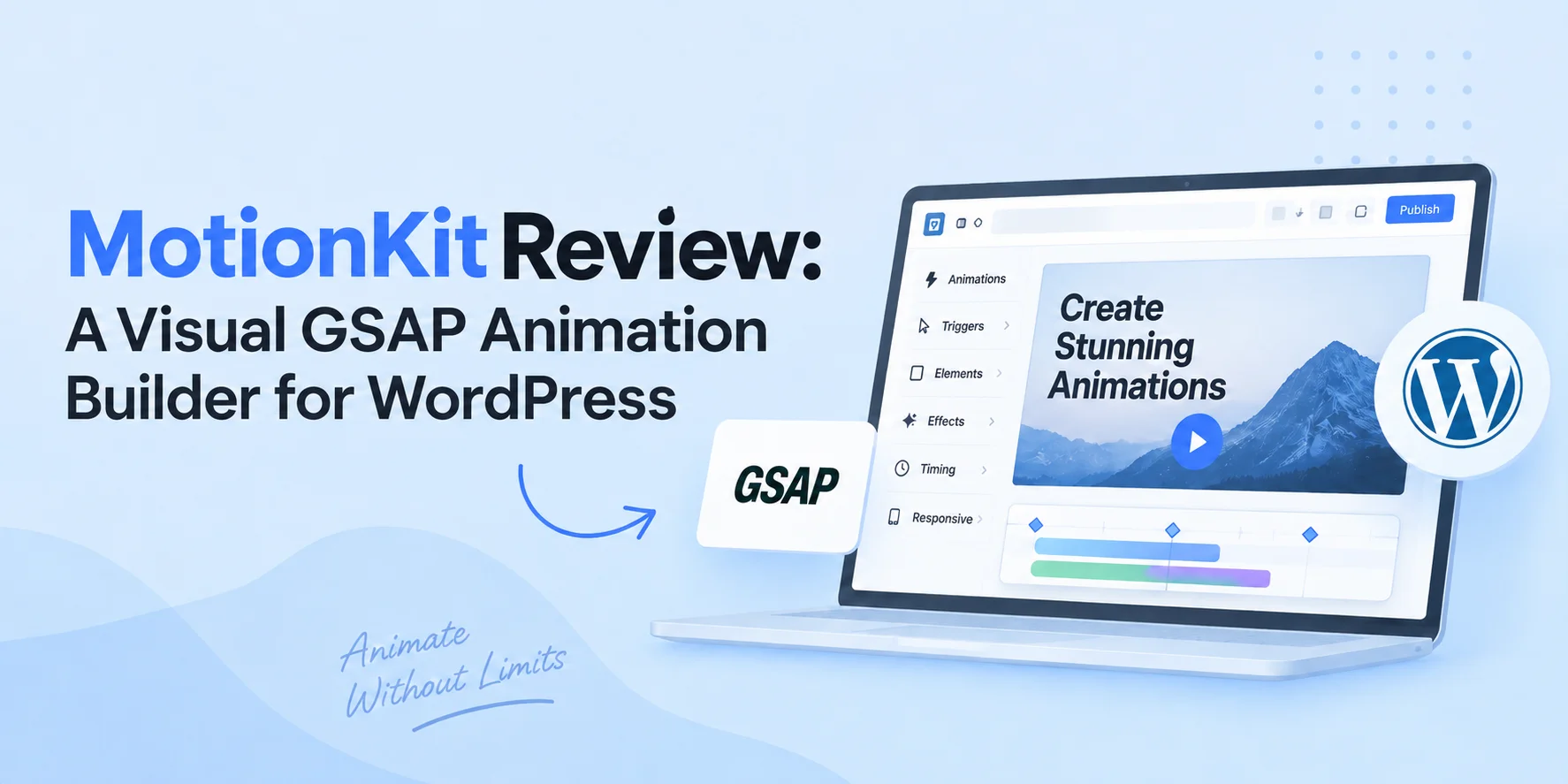
It puts a visual interface between WordPress and GSAP, allowing you to create scroll-triggered effects, timelines, text reveals, parallax effects, hover interactions, and other motion patterns without manually writing JavaScript. Its editor runs separately from WordPress, while a lightweight connector plugin publishes the animations to the website.
Quick answer: MotionKit is a visual, no-code GSAP animation builder for WordPress. You connect a WordPress site, open an existing page in the visual editor, select the elements you want to animate, choose a preset or build a custom animation, preview it, and publish it. The main advantage is that you get more control than typical page-builder animations without having to build every interaction from scratch in JavaScript.
Why WordPress Animation Usually Becomes a Development Task
Most WordPress builders already include entrance animations.
Fade in. Slide up. Zoom. Maybe a few hover effects.
Those are useful for simple pages. The problem starts when the design asks for something more specific.
A headline needs to reveal one word at a time.
A group of cards needs to enter sequentially as the visitor scrolls.
A product image needs to move at a different speed from the background.
A section needs to stay pinned while another sequence plays.
At that point, the native animation controls of the page builder may no longer be enough.
The traditional solution is custom GSAP.
GSAP is powerful because it gives developers detailed control over timing, easing, transforms, timelines, ScrollTrigger, text animation, SVG animation, and more. GSAP itself is now free for commercial use, but using it still requires JavaScript knowledge.
MotionKit is designed around that gap.
Instead of replacing your WordPress builder, it adds a dedicated motion layer to the website. That distinction matters.
What Is MotionKit?
MotionKit is a visual animation platform for WordPress powered by GSAP.
It consists of two main parts:
- A hosted visual editor where animations are created
- A lightweight WordPress connector that publishes and runs those animations
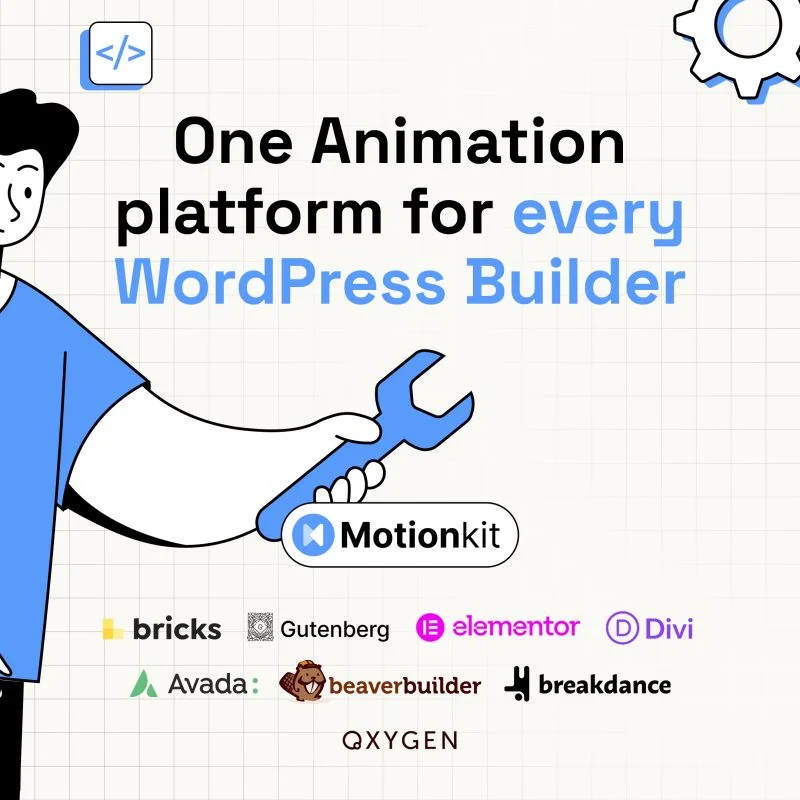
The editor is hosted separately from WordPress. You connect your website, open an existing page, select an element, and create the animation from the MotionKit interface.
This means MotionKit is not another page builder.
You still build the page using Elementor, Bricks, Gutenberg, Divi, Breakdance, Oxygen, Beaver Builder, WPBakery, or another supported WordPress setup. MotionKit handles the motion layer on top of that existing page.
That approach also makes the workflow useful for teams that work across multiple builders. You don’t have to learn a completely different animation system every time the page builder changes.
How MotionKit Works
The workflow is deliberately straightforward.
Connect Your WordPress Site
First, install the MotionKit Connector plugin and connect the website to your MotionKit account.
The connection uses authorization rather than exchanging your WordPress password with MotionKit. The documentation says a secure token is stored in WordPress and on MotionKit after authorization.
Open the Visual Editor
Once connected, you can launch the site inside the MotionKit visual editor. The important part is that you are working with the page you have already built.
You are not rebuilding the hero section inside another editor. You are adding animation to the existing page.
Select an Element
Select the heading, image, button, section, card, or other element you want to animate.
MotionKit can target an individual element or elements sharing a CSS class. Using a class is particularly useful when you want to apply the same animation to a collection of cards or repeated components.
Choose a Preset or Build From Scratch
This is where the visual workflow becomes useful.
MotionKit provides more than 100 presets and also allows custom animations. You can start with a ready-made effect and then change its timing, easing, movement, scale, opacity, stagger, and other properties.
If the preset does not match the design, you can build the animation yourself.
Preview and Publish
You can preview the animation on the actual page before publishing. Once it looks right, publish it from the editor.
That removes one of the common frustrations of custom animation work: repeatedly switching between a code editor, browser, WordPress dashboard, and live page just to adjust a few milliseconds of timing.
A detailed overview of how to create GSAP animations in WordPress using MotionKit
What Can You Create With MotionKit?
MotionKit is more than a collection of entrance animations. Its current feature set includes several categories of motion.
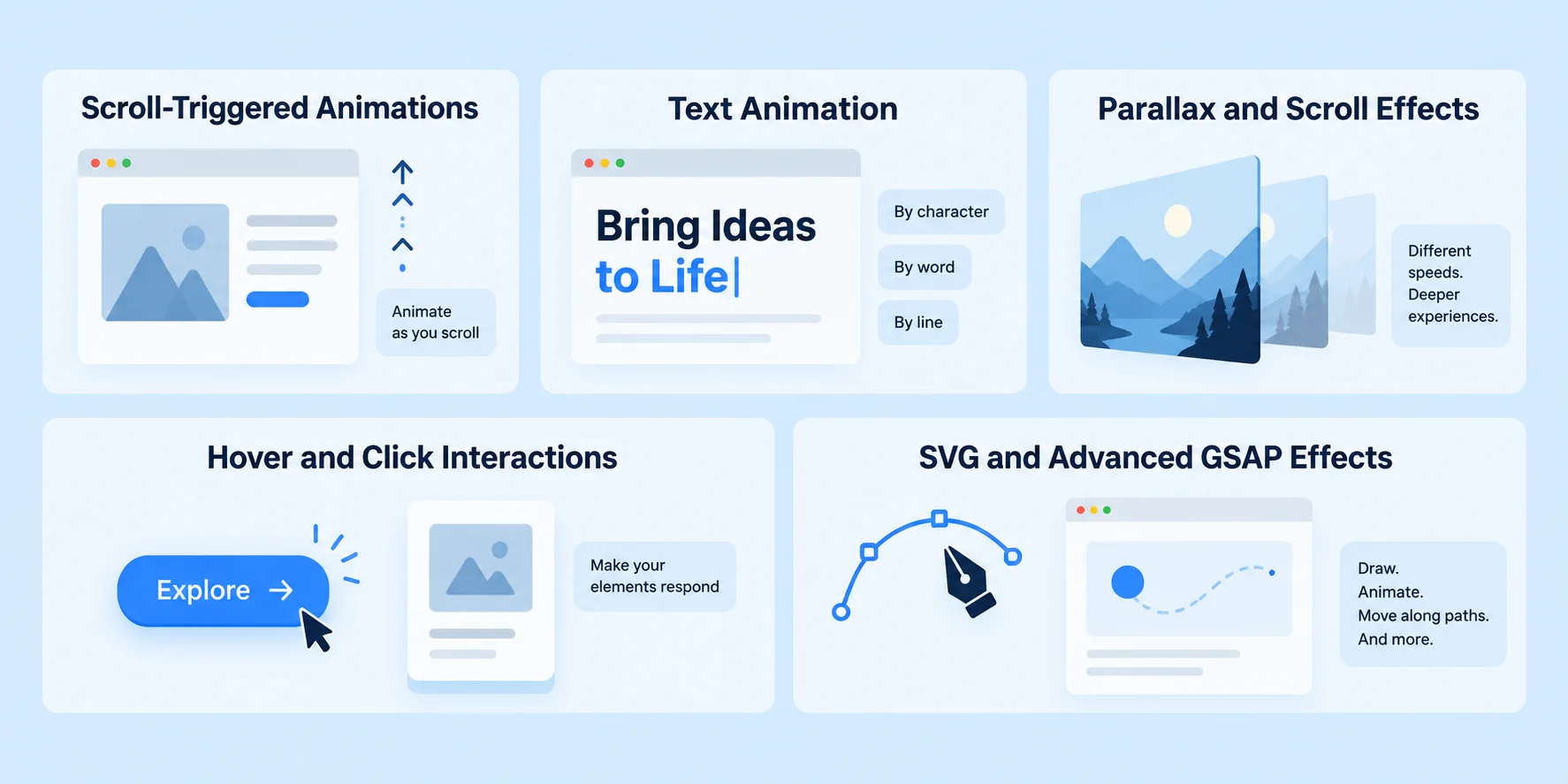
Scroll-Triggered Animations
Scroll-based animation is one of the main reasons designers reach for GSAP.
MotionKit uses GSAP ScrollTrigger controls for effects such as scroll reveals, scrubbed timelines, pinning, parallax, and other scroll-driven interactions. For example, imagine a services section containing three cards.
Instead of showing all three immediately, you could:
- Trigger the animation when the section enters the viewport.
- Move each card upward from its starting position.
- Fade the cards into view.
- Add a small stagger between them.
- Adjust the timing separately for mobile.
That is a design decision rather than a development task.
Text Animation
Text is another area where basic page-builder animation can quickly become limiting.
MotionKit supports text effects that can reveal content by character, word, or line through its SplitText-based workflow.
For a hero heading, for example:
“Build Better Digital Experiences”
could appear line by line instead of arriving as one block.
Used carefully, this can make an important headline feel more intentional without adding another visual element.
Parallax and Scroll Effects
Parallax creates different movement speeds between layers.
A background image might move slowly while foreground content moves normally. MotionKit provides visual controls for scroll parallax and related ScrollTrigger behavior.
The practical benefit is that you can test the effect visually rather than estimating values in JavaScript.
Hover and Click Interactions
MotionKit also supports interaction-based animations.
A button can respond to hover.
A card can trigger another element.
An image can scale or move when the visitor interacts with it.
These effects can be built through the same visual workflow rather than requiring separate snippets for each interaction.
SVG and Advanced GSAP Effects
The MotionKit documentation also covers SVG animation, including drawing paths and motion along paths. Its broader GSAP-based feature set includes tools such as DrawSVG, MotionPath, SplitText, and other GSAP capabilities depending on the plan.
That gives designers room to move beyond basic “fade in on scroll” effects.
MotionKit vs Native WordPress Animation Controls
There is an important distinction here. Native animation controls are usually designed to solve common cases quickly. MotionKit is designed for more deliberate motion.
Suppose a designer asks for:
- A hero heading that reveals character by character
- A subtitle that follows after 300ms
- A button that enters after the subtitle
- Three cards that stagger as the visitor scrolls
- A background image that moves at a different speed
You can technically build pieces of this with different WordPress plugins or custom code. But every additional system introduces another configuration layer.
MotionKit puts these animation decisions into one visual workflow.
That can be particularly useful for agencies where a designer needs to implement an approved motion design without handing every small change to a developer.
Responsive Animation Needs Its Own Rules
One mistake with animation is assuming desktop settings will automatically make sense on mobile.
They often do not.
A 100px movement that looks subtle on a desktop screen can feel excessive on a phone.
A complicated stagger can make a mobile page feel slow.
A pinned section that works beautifully with a large viewport can become awkward on a smaller one.
MotionKit includes responsive animation controls, allowing animation behavior to be adjusted for different device sizes.
The practical workflow should still be the same as any other responsive design task:
Desktop first → tablet check → mobile adjustment → real-device test.
Do not treat responsive motion as an automatic by-product of responsive layout.
Performance: Does MotionKit Slow Down WordPress?
Animation always has a performance cost somewhere.
The right question is not whether animation exists, but how it is implemented.
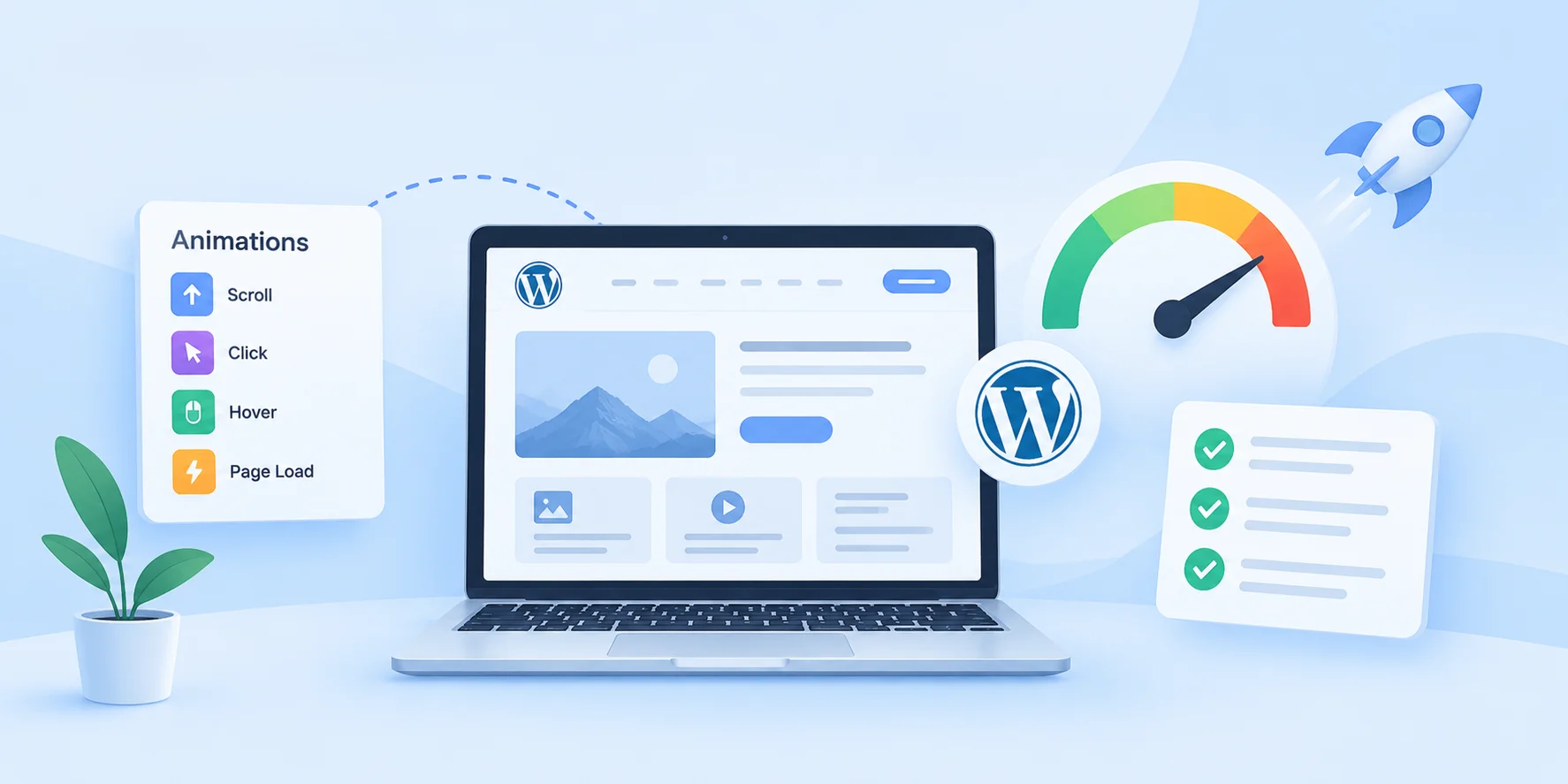
MotionKit says its runtime is loaded only on pages where published animations exist. Its documentation also recommends avoiding unnecessary overlap between animation systems and ensuring optimization plugins do not interfere with the MotionKit runtime.
That is important because animation problems often come from the surrounding implementation rather than the animation library alone.
For example, if the same heading has both a page builder entrance animation and a MotionKit animation, the two systems may compete.
The result can be:
- Jumping elements
- Double animations
- Incorrect starting positions
- Delayed rendering
- Difficult-to-debug behavior
MotionKit’s support documentation specifically recommends disabling the builder’s own entrance animation on elements that MotionKit is animating.
A sensible performance checklist is therefore:
- Animate transform and opacity where possible.
- Avoid animating large numbers of elements simultaneously.
- Do not stack multiple animation systems on the same element.
- Test animation on mobile devices.
- Check Core Web Vitals after implementation.
- Keep scroll-triggered effects purposeful rather than decorative.
The tool can simplify animation creation, but it does not remove the need for performance judgment.
The Builder-Agnostic Advantage
One of MotionKit’s more interesting characteristics is that it is not tied to one WordPress page builder.
The current documentation lists support for major builders including Elementor, Bricks, Divi, Gutenberg, Breakdance, Oxygen, Beaver Builder, WPBakery, SeedProd, Avada, and others.
That matters for agencies.
Imagine an agency managing ten websites.
- Three use Elementor.
- Two use Bricks.
- Another uses Gutenberg.
A client later changes builders.
A builder-specific animation system can make that transition more complicated.
MotionKit’s site-level approach means the animation workflow is separated from the page-builder interface.
That does not mean every existing animation automatically survives every possible redesign. Selectors, structure, and page content still matter.
But the underlying animation workflow is not built around one builder’s proprietary widget system.
Reusable Animations Can Change the Agency Workflow
The biggest productivity gain may not come from creating the first animation. It can come from creating the second one.
If an agency repeatedly builds similar websites, it may repeatedly need:
- Hero reveals
- Card stagger animations
- Image reveals
- Scroll-based sections
- Button interactions
- Text reveals
Rebuilding each sequence manually wastes time.
MotionKit’s higher plans include a reusable animation library, along with import/export functionality and the ability to reuse animations across projects.
That changes animation from a one-off production task into something closer to a design-system asset.
Build it once.
Refine it.
Document when to use it.
Reuse it where appropriate.
The same principle already works for website templates, components, global styles, and section libraries.
Pricing: What Does MotionKit Cost?
MotionKit currently has a free plan and several paid plans.
The current pricing page lists Free, Starter, Freelancer, Agency, and Studio tiers. The Free plan supports one connected site, up to two pages, and a limited number of active animations. Paid plans increase the number of websites, pages, animations, presets, reusable features, and collaboration options.
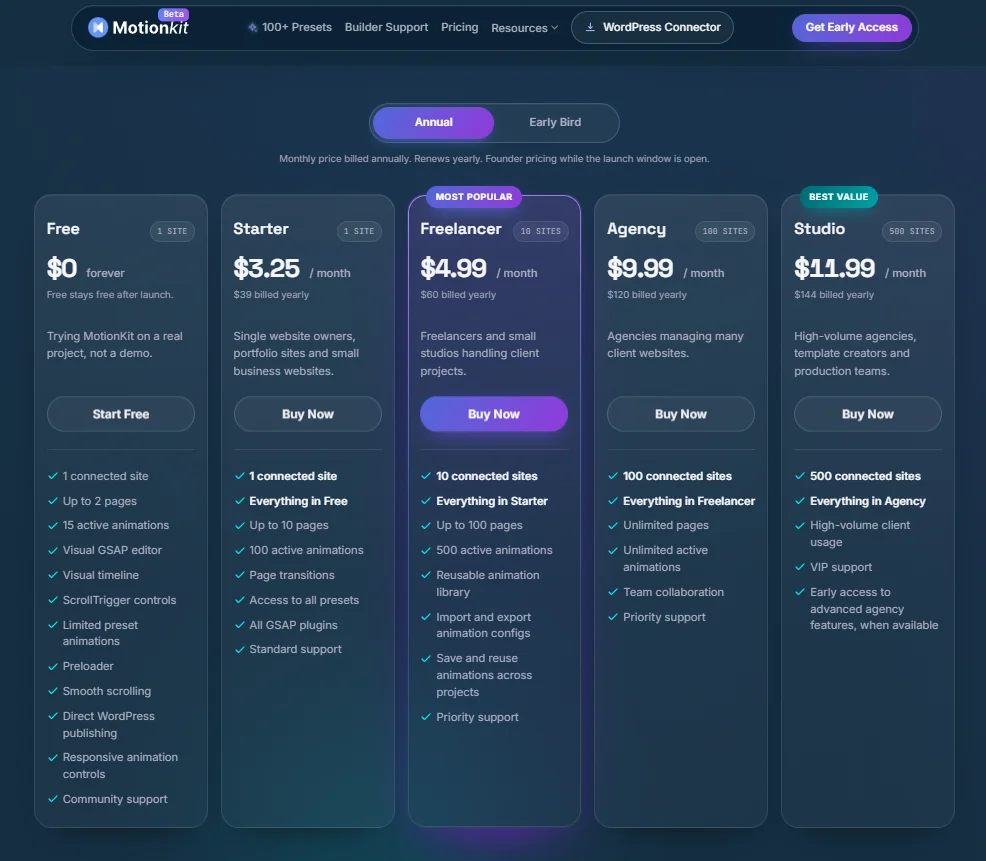
Current annual pricing starts at $39/year for Starter, $60/year for Freelancer, $120/year for Agency, and $144/year for Studio, according to the current pricing page. The site is also showing launch-period lifetime licensing, so pricing and promotional terms should be checked before purchase.
For someone evaluating the product, the free tier is useful because the connector and free plan allow the editor to be tested on a real WordPress site rather than only through a demo.
That is worth doing before choosing a paid plan.
Where MotionKit Fits
MotionKit makes the most sense when the requirement sits somewhere between basic builder animation and hand-written GSAP.
Use Native Builder Animations When
- The design only needs simple entrance or hover effects.
- There is no complex sequencing.
- The existing builder controls already produce the intended result.
- Adding another animation system would simply create unnecessary complexity.
Use Custom GSAP When
- The project requires highly specialized behavior.
- The development team is comfortable writing and maintaining JavaScript.
- You need complete control outside WordPress or beyond MotionKit’s visual interface.
Use MotionKit When
- You want GSAP-level animation concepts without manually writing the animation code.
- You want designers to participate directly in animation implementation.
- You work across multiple WordPress builders.
- You want reusable animation patterns across client websites.
- You need scroll-driven sequences, text animation, parallax, timelines, or more advanced interactions without building each effect from scratch.
That positioning is more useful than treating MotionKit as a replacement for every other animation approach.
A Practical MotionKit Workflow
If you are introducing MotionKit into an existing WordPress workflow, do not start by animating the whole website.
Start with one page.
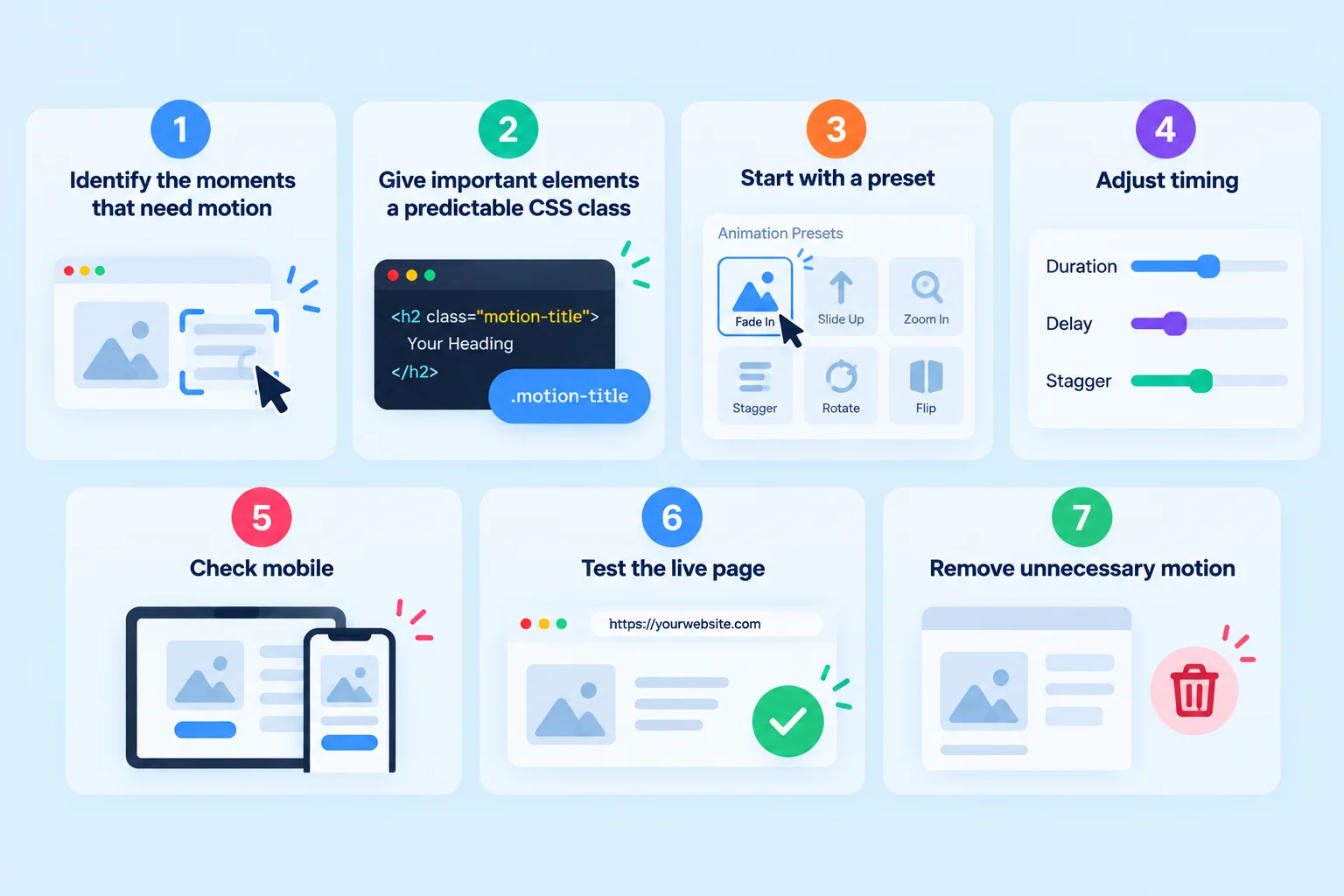
Then use this process:
1. Identify the moments that need motion – Do not begin with “What can I animate?” Start with “Where would motion improve the experience?”
2. Give important elements a predictable CSS class – This makes targeting and reuse easier.
3. Start with a preset – Use the preset as a starting point rather than rebuilding a common effect.
4. Adjust timing – Duration, delay, easing, and stagger usually have a bigger impact on perceived quality than adding another effect.
5. Check mobile – Reduce movement and complexity when necessary.
6. Test the live page – Previewing in the editor is useful, but the final website still needs real-device testing.
7. Remove unnecessary motion – If an animation does not improve hierarchy, feedback, or storytelling, it may not need to exist.
This last step is easy to skip. It is also one of the most valuable.
Final Thoughts: Make Motion Part of the Design System
MotionKit is interesting because it does not try to replace WordPress.
It adds a motion workflow to the WordPress stack you already have.
The combination of a visual editor, GSAP underneath, ready-made presets, ScrollTrigger controls, responsive settings, and direct publishing gives designers a way to create more sophisticated interactions without turning every animation request into a JavaScript task.
Build the motion once. Make it reusable. Test it properly. Then use it where it actually improves the page.
FAQs
Is MotionKit a WordPress page builder?
No. MotionKit is an animation platform rather than a page builder. Your pages remain in tools such as Elementor, Bricks, Gutenberg, Divi, or other supported WordPress builders. MotionKit adds the animation layer.
Do I need to know JavaScript or GSAP to use MotionKit?
No. MotionKit is designed as a no-code visual GSAP editor. You can use presets and visual controls without writing JavaScript. Developers familiar with GSAP can still benefit because controls such as duration, easing, timelines, and ScrollTrigger map to familiar animation concepts.
Which WordPress builders does MotionKit support?
MotionKit currently supports major WordPress environments including Elementor, Bricks, Gutenberg, Divi, Breakdance, Oxygen, Beaver Builder, WPBakery, SeedProd, Avada, and others listed in its compatibility information.
Can MotionKit create GSAP ScrollTrigger animations?
Yes. MotionKit provides visual controls for ScrollTrigger-based animations, including scroll-triggered effects, scrubbed sequences, pinning, and parallax.
Subscribe to Our Newsletter
Get the latest WordPress tutorials, trends, and resources right in your inbox. No Spamming, Unsubscribe Anytime.

Thank you for subscribing to our newsletter!

Table of Content
- Why WordPress Animation Usually Becomes a Development Task
- What Is MotionKit?
- How MotionKit Works
- Connect Your WordPress Site
- Open the Visual Editor
- Select an Element
- Choose a Preset or Build From Scratch
- Preview and Publish
- What Can You Create With MotionKit?
- Scroll-Triggered Animations
- Text Animation
- Parallax and Scroll Effects
- Hover and Click Interactions
- SVG and Advanced GSAP Effects
- MotionKit vs Native WordPress Animation Controls
- Responsive Animation Needs Its Own Rules
- Performance: Does MotionKit Slow Down WordPress?
- The Builder-Agnostic Advantage
- Reusable Animations Can Change the Agency Workflow
- Pricing: What Does MotionKit Cost?
- Where MotionKit Fits
- Use Native Builder Animations When
- Use Custom GSAP When
- Use MotionKit When
- Final Thoughts: Make Motion Part of the Design System
- FAQs
- Is MotionKit a WordPress page builder?
- Do I need to know JavaScript or GSAP to use MotionKit?
- Which WordPress builders does MotionKit support?
- Can MotionKit create GSAP ScrollTrigger animations?